

Features of the Integration
The Privy <> Emotive integration allows you to sync SMS contacts collected via Privy Display, and:- Choose which Welcome Flow they should enter after signup
- Sync the master or unique coupon code generated at signup
- Sync custom properties collected at time of signup
Create your List Growth API in Emotive
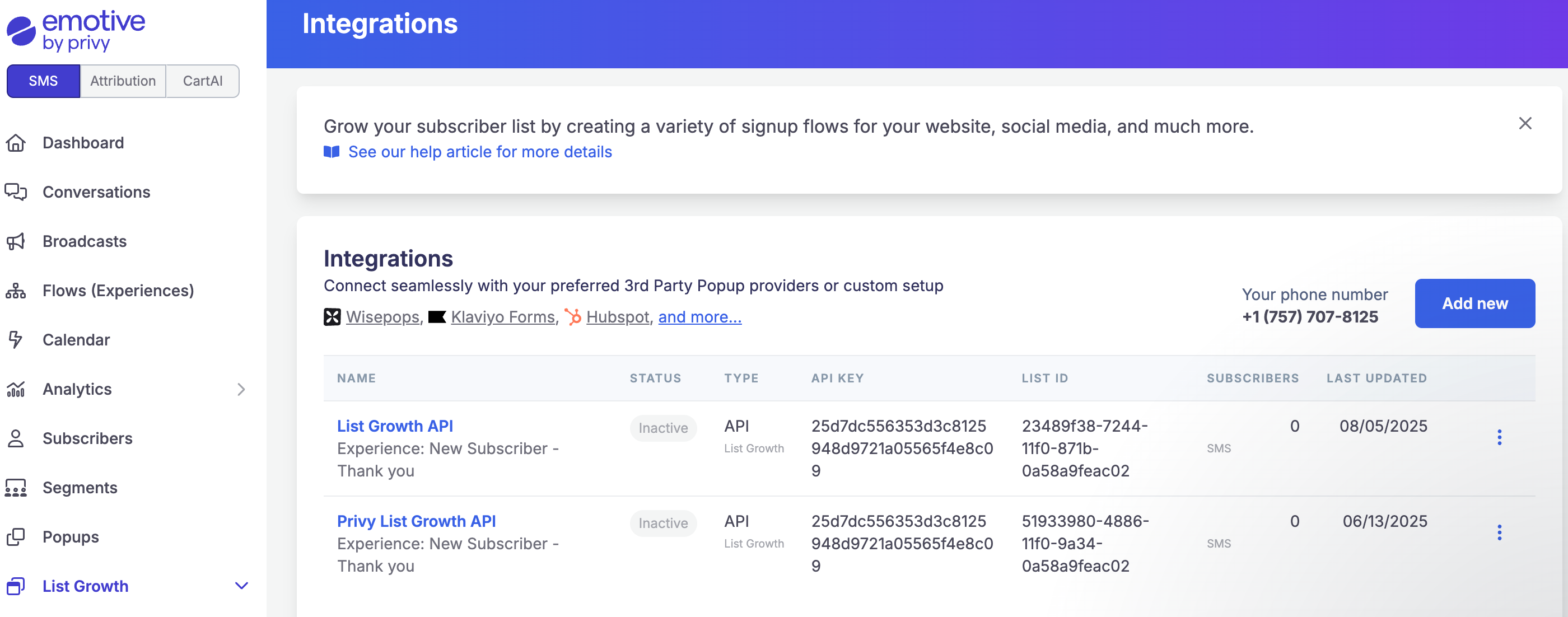
- Navigate to List Growth and head to your Integrations page.
- Click Add new.
- Select Add new List Growth API.
- Name your new API something easy to identify, such as “List Growth API - Privy”.
- Select which Flow you’d like your new Jotform signups to enter.
- Click Next.
- Copy your new API’s “List ID”.
Install Emotive on Privy
To link your Privy account with your Emotive account:- Log into Privy.
- Click on Settings on the lower left of your dashboard. Select the Integrations option from the left menu.
- Select Emotive from the list of Available Integrations.
- Enter your email address and your “List ID” from Emotive, then click Link Account.
Syncing Signups to Emotive
To add a sync rule to a display so that the collected contacts sync to Emotive:- Log into Privy.
- Navigate to Convert > All Displays.
- Select the display you’d like to sync and navigate to the Settings step of the display builder.
- Click to expand Advanced Settings at the bottom left of the page. Scroll to the Sync Integrations section.
- Select Emotive from the dropdown menu, configure the presented options, and Save.